Switching from Paprika
Bring your whole library over in about a minute.
Your recipes, photos, ratings and categories come along. Your categories become tags you can keep, rename or fold into Recipe Trunk's groups.
How it works
- Export from Paprika. In Paprika, choose Export, select all your recipes and save the
.paprikarecipesfile. - Open it in Recipe Trunk. Go to Import, choose Paprika file and pick the file you saved.
- Check your categories. Recipe Trunk suggests where each Paprika category belongs, such as Course, Main ingredient or Diet. Keep the suggestion or change it.
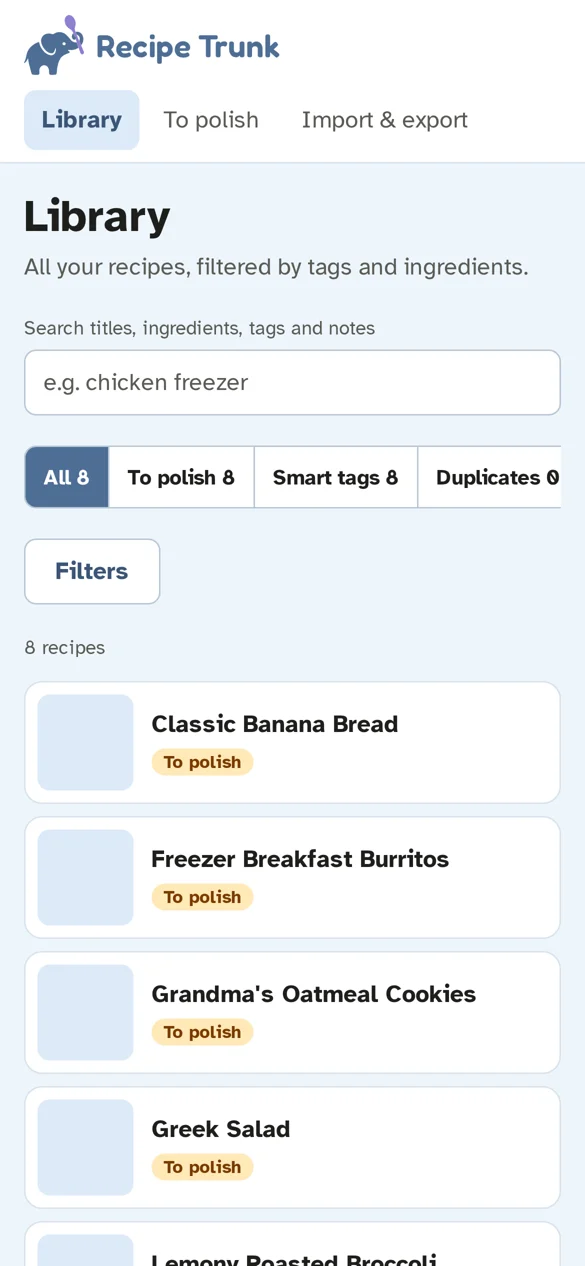
- Polish at your own pace. Sure fixes are made on the way in. Anything else waits in a To polish list, and possible duplicates are shown side by side.
What comes over
- Every recipe: ingredients, steps, notes, servings and times
- Photos, including extra photos on a recipe
- Star ratings, sources and links
- Categories, turned into tags
Tested with a real library of 804 recipes and 688 photos: everything came in, and exporting back to a Paprika file lost nothing.
Questions people ask
Will my Paprika library change?
No. Importing reads a copy of your export file. Paprika stays exactly as it was.
Can I go back?
Yes. Recipe Trunk exports your whole library to a Paprika file whenever you like, even during the free trial.
What if I stop paying?
Your library stays readable and exportable for free. Adding and editing need a plan.
Join the waitlist
Be first in the door.
Leave your email and we'll tell you when founding memberships open.